

See the timer and its controls together inside PowerPoint.
PowerPoint add-in for Windows
LTC Timer S
Add a customizable countdown directly to an individual PowerPoint slide.
- Runs directly on the slide where you insert it
- Set any countdown time, size, color, font, and position
- Play and preview a sound when time is up
- PowerPoint 2016 or later on Windows
- Works offline after installation. Internet access is required only during installation.
- Single-machine lifetime license
Try countdowns of one minute or less before you buy.
Quick demonstration
See LTC Timer S in action
Watch the timer being inserted and used inside PowerPoint, including its on-slide countdown and sound controls.
Built for presentations
A countdown that belongs on your slide
Keep the timer where your audience can see it without opening a browser or switching away from PowerPoint.
Insert it on one slide
Place the countdown on the individual slide where the timed activity takes place.
Make it fit your design
Set the duration, size, color, font, and position to suit your presentation.
Signal when time is up
Add, remove, and preview sounds, then play the selected sound when the countdown ends.
How it works
From setup to countdown in three steps
- Open the timer paneUse the LTC Clock command in PowerPoint.
- Choose your settingsSet the time, appearance, position, and end sound.
- Insert and presentRun the slideshow and let the countdown keep everyone on time.
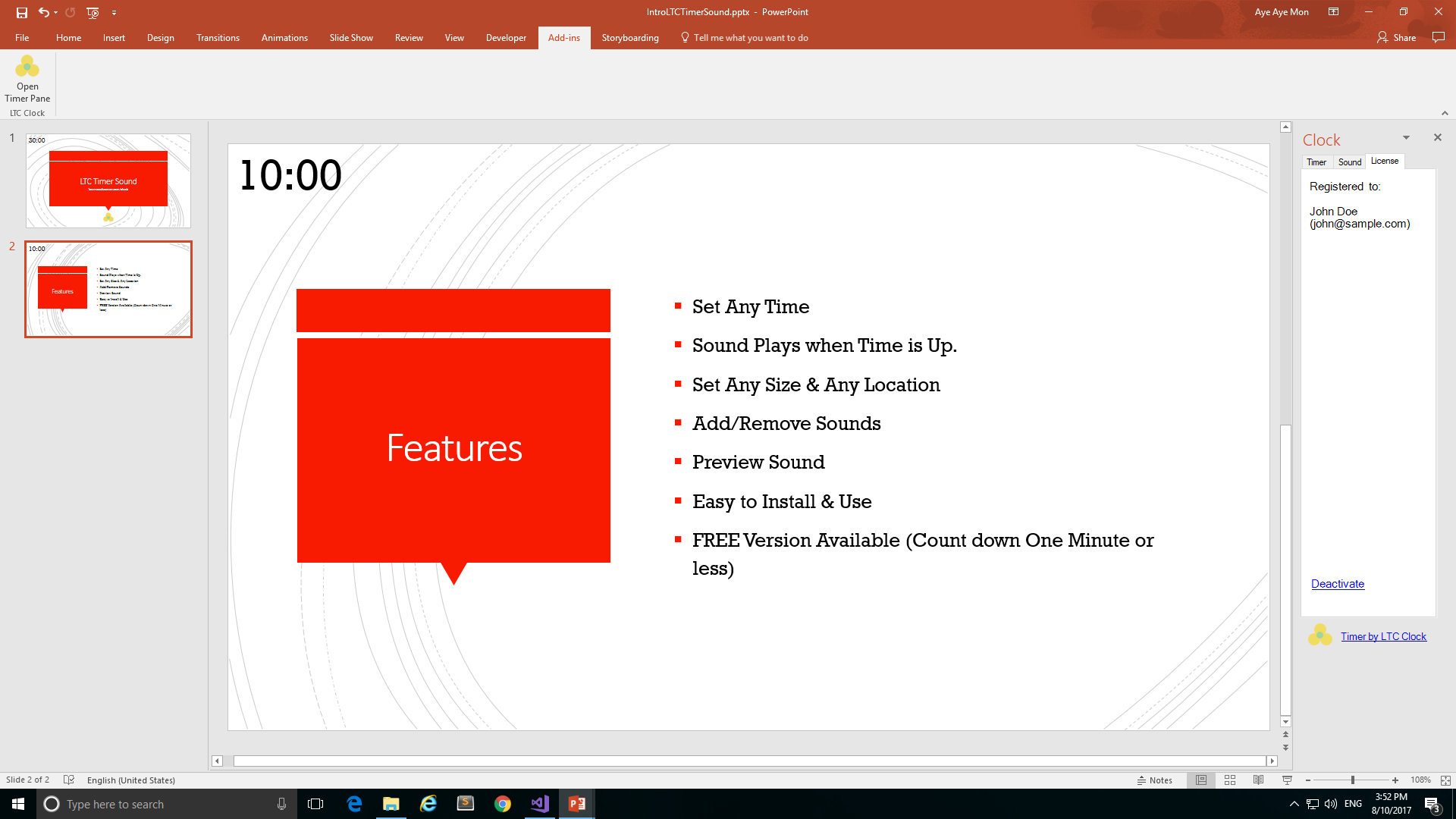
Inside PowerPoint
See the timer, controls, and slideshow view



Compatibility
Made for PowerPoint on Windows
LTC Timer S is a Windows PowerPoint add-in designed for an individual presentation slide.
- Operating system
- Windows
- PowerPoint
- 2016 or later
- Timer placement
- One individual slide
- License
- Single machine, lifetime
Try before you buy
Free version vs. full version
Use the free version to test LTC Timer S in your own PowerPoint setup.
| Feature | Free | Full |
|---|---|---|
| Countdown length | One minute or less | Set any time |
| On-slide timer | Included | Included |
| Appearance controls | Included | Included |
| Price | Free | $20.00 lifetime |
Choose the right timer
Need a different kind of countdown?
Frequently asked questions
Before you download
Will the timer stay visible when I change slides?
No. LTC Timer S is inserted on an individual slide. Choose LTC Desktop Timer if you need a timer that remains visible across multiple slides.
Can I change how the timer looks?
Yes. You can change the timer's size, color, font, and position on the slide.
Does it play a sound when time is up?
Yes. You can add, remove, and preview sounds, then select the sound that plays when the countdown finishes.
Can I try LTC Timer S before buying?
Yes. The free version supports countdowns of one minute or less, so you can test it with your PowerPoint setup first.
Ready to add your timer?